Never miss a minute of your favourite content. Our recording feature gives you the flexibility of watching any live show or event whenever you like.
To record a live TV program:
1. From full screen view, go to Playback Controls
2. Select RECORD or press the red RECORD button on your remote
3. Press OK
4. To STOP recording, press the RECORD button again

Missed a program that recently aired? No problem!
This feature allows you to watch specific programs that remain available to view for a certain amount of time (up to 24 hours).
Channels that have Catch Up Shows will display the Restart TV/Catch Up TVicon on your TV Guide.
Reduce the risk of your children accessing inappropriate content. Parental Controls (PC) allow you to restrict certain TV programs, on-demand movies, and personal recordings.
They can be unlocked from either your Home Screen or your TV Guide.
To unlock from your Home Screen:
1. Go to Parental Controls
2. Enter your PIN
3. Press DONE
When Parental Controls are activated, content on your TV Guide will be flagged as Restricted Content. To unlock:
1. Select your desired content
2. Press OK on your remote
3. Enter your PIN
4. Press DONE
Reduce the risk of your children accessing inappropriate content. Parental Controls (PC) allow you to restrict certain TV programs, on-demand movies, and personal recordings.
They can be accessed from your Account Settings menu. To open:
1. Select My Profile or Users
2. Enter your PIN
3. Press DONE
4. Select Parental Controls
You can now enable or disable Parental Controls and select which TV/movie ratings you wish to restrict or flag.
It really depends on the type of television that you currently have. Your TVs should have an HDMI port available to connect the ALIV Fibr TV set-top-box (STB).
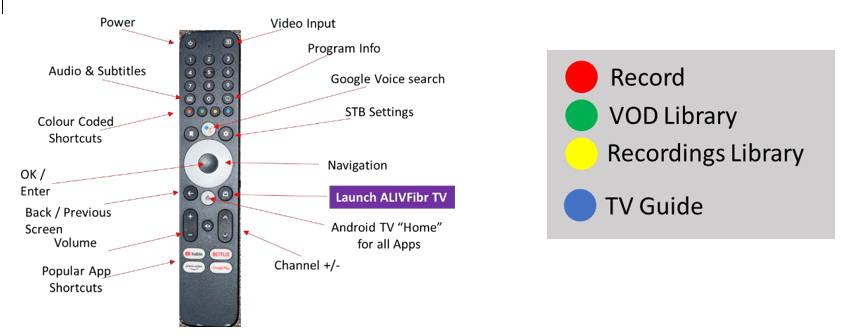
The RCU controls your TV and STB (universal), provides shortcuts for popular apps, and includes color-coded shortcut buttons for recording, accessing the VOD library, Recordings Library, and TV Guide.
See images below for remote control navigation guides.
When powered on, the STB will launch directly into the ALIVFibr TV app. You can then:
Select “TV” to view your TV Guide.
Select “Search” to search for content.
Select “Home” to see suggested content.
Select “Recordings” to see a collection of recorded programs.
Explore other available options.
Use the Navigation button on your ALIVFibr TV remote to move through the TV Guide. Press the OK/Enter button once to see information about a highlighted program and a second time to watch it. You can also press the info button for detailed info about the highlighted program.
To view on-demand content:
Select VOD from the Main Navigation Menu and press OK.
Filter content by Genre, Rating, TV or Movie, or Show Type.
Alternately, you may select the green button on your remote.
Yes. You can record content by using the record button directly from the guide or from the program you are watching. Alternately, you can select record from the info screen of the program you are interested in, or press the red button on your remote.
Yes. To record future content, use the navigation button to locate the content in the TV guide that you are interested in. Once located, select Record.
You can search by direct “typed” input or using voice search. Select “Search” from the TV home menu, then either click in the search bar or select the microphone to search by voice. You can search by title, actor, or genre. Additionally, you can use the Google search button on your remote control for results across apps.
You can find results by title, actor, or genre across live TV, recordings, and VOD content.
Catch Up TV allows you to watch recently aired programs that remain available to view for up to 24 hours. Channels with Catch Up Shows will display the Restart TV/Catch Up TV icon on your TV Guide.
Time Shift TV is a feature that allows you to pause, rewind, and resume live television broadcasts. It provides flexibility to control your viewing experience, letting you take a break during live shows or re-watch parts you may have missed.
While watching live TV, you can use Time Shift TV by pressing the OK/Enter button on your remote control to access the playback options:
**Most channels support Time Shift TV, but availability may vary depending on the channel and the content provider**
Parental Control allows you to restrict access to TV programs, on-demand movies, and personal recordings.
To unlock Parental Controls:
Select “Unlock Parental Control” from the Main Navigation Menu.
Enter your PIN and press DONE.
If content on your guide reads “Restricted Content”:
Select the content.
Press OK on your remote.
Enter your PIN and press DONE.
To set Parental Controls:
Click on your Profile or Users.
Edit User, then select Parental Controls.
Enter your PIN and enable or disable controls and select which Movie and TV Ratings to restrict.
The ALIVFibr TV Set Top Box (STB) supports OTT apps like Disney+, Netflix, HBOMax, YouTube, and more. Customers can download their favorite apps from the Google Play Store through the STB.
Yes, TV Everywhere (TVE) allows you to watch ALIVFibr TV content on any android or IOS- compatible device, including TVs, mobile devices, and computers. Find the ALIVFibr TV app in your app store. Availability may vary based on your device’s operating system.
Download the ALIVFibr TV app from the Google Play Store or Apple App Store. Once the app is installed, open and log in with your ALIVFibr TV account credentials to start browsing and enjoying the content. Availability may vary based on your device’s operational system.
The STB (set-top-box) must be hard reset. To do this, unplug the power cord at the back of your set-top box, wait 5 seconds and then plug the cord back in. This will reset the STB.
Ensure that Catch-Up TV is not enabled by going two channels up and then returning to the original channel. Also, check that the guide is not advanced too far into the future.
Ensure the STB power light is on and HDMI cable is firmly plugged in.
Try using another HDMI port.
Make sure the desired audio output device is turned on and the volume is turned up.